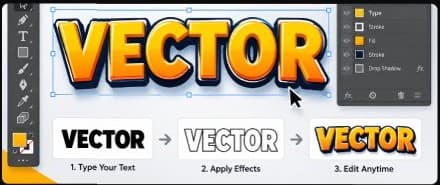
Overview
This comprehensive guide walks you through the essential steps, from setting up your document to applying advanced techniques that enhance your design. Whether you're a beginner or an experienced designer, this tutorial provides valuable tips and tricks to elevate your vector graphics skills. Join us as we explore the powerful tools available in Illustrator to create stunning text effects that can be easily modified and customized.
Introduction
Typography is more than just choosing the right font. With the right combination of colors, strokes, and effects, ordinary text can become a striking visual element for posters, branding, social media graphics, and digital illustrations. One of the biggest challenges designers face when stylizing text is maintaining editability. Traditional methods often require converting text into outlines, making future edits tedious. By utilizing Illustrator's Appearance Panel, Graphic Styles, and non-destructive effects, you can construct sophisticated typography treatments while keeping live, editable text intact.
Step 1: Set Up Your Document and Base Typography
Start by opening Adobe Illustrator and creating a new canvas. Select a bold, impactful sans-serif or slab-serif typeface with generous letter spacing to provide ample surface area for layered effects.
Step 2: Leverage the Appearance Panel for Layered Fills
Open Window > Appearance. Remove the default text fill and add a new fill via the Appearance panel menu. Apply a vibrant linear gradient from warm orange to golden yellow to create rich depth.
Step 3: Add Multiple Strokes and 3D Offset
- In the Appearance panel, add a stroke to your text. Choose a color that contrasts with the gradient fill.
- Start with a thin, light-colored stroke to create a crisp edge. Add another stroke using a darker blue or navy, then increase its weight to create a stronger outer border.
- Experiment with the order of your fills and strokes in the Appearance panel. Different stacking arrangements can produce different outlines, edges, and depth effects.
Pro Tip: Save your finished text styling as a Graphic Style (Window > Graphic Styles). You can then apply this effect to any new text box with a single click, without having to rebuild the layers.